


Customizing the Subscription Form
Files: src/config/config.toml · Skill level: Beginner
The subscription form in the footer allows users to subscribe to your email list. To configure the subscription form, open the config.toml file in the src/config folder and find the following section:
# Mailchimp Subscription Form located in footer[settings.subscription] enable = true # Enables or disables the subscription form title = "" formAction = "https://your-account.us1.list-manage.com/subscribe/post?u=YOUR_USER_ID&id=YOUR_LIST_ID&f_id=YOUR_FORM_ID"enable→ Enables/disables the subscription form.title→ Does nothing in Lumio. The form shows no title.formAction→ Specifies the action URL for the subscription form. It ships with a placeholder, so nothing arrives until you set it. Mailchimp’s code shows&: change each one to a plain&.
Getting Mailchimp Subscription Form Action URL
Currently, we are using Mailchimp for our subscription form. You can find the form action URL in the Mailchimp dashboard. Follow the steps below to get the form action URL:
Create a Mailchimp Account
If you don’t already have a Mailchimp account, sign up at mailchimp.com or log in if you have one.
Create an Embedded Form
After logging in, you will see the dashboard. From the left sidebar, click the
Createbutton located at the top.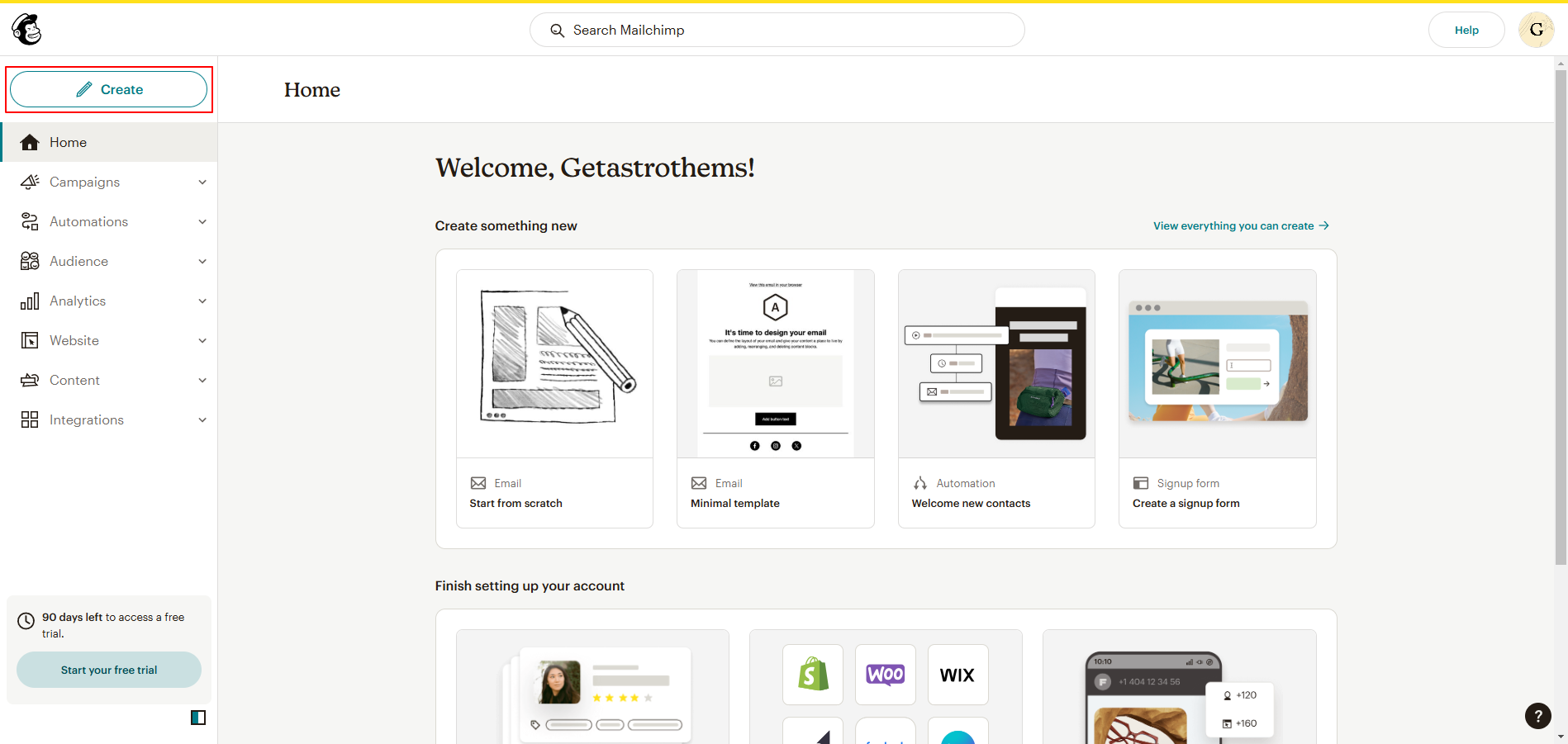
Then click
Signup Form, thenEmbedded Form, and fill out the form before clickingBegin.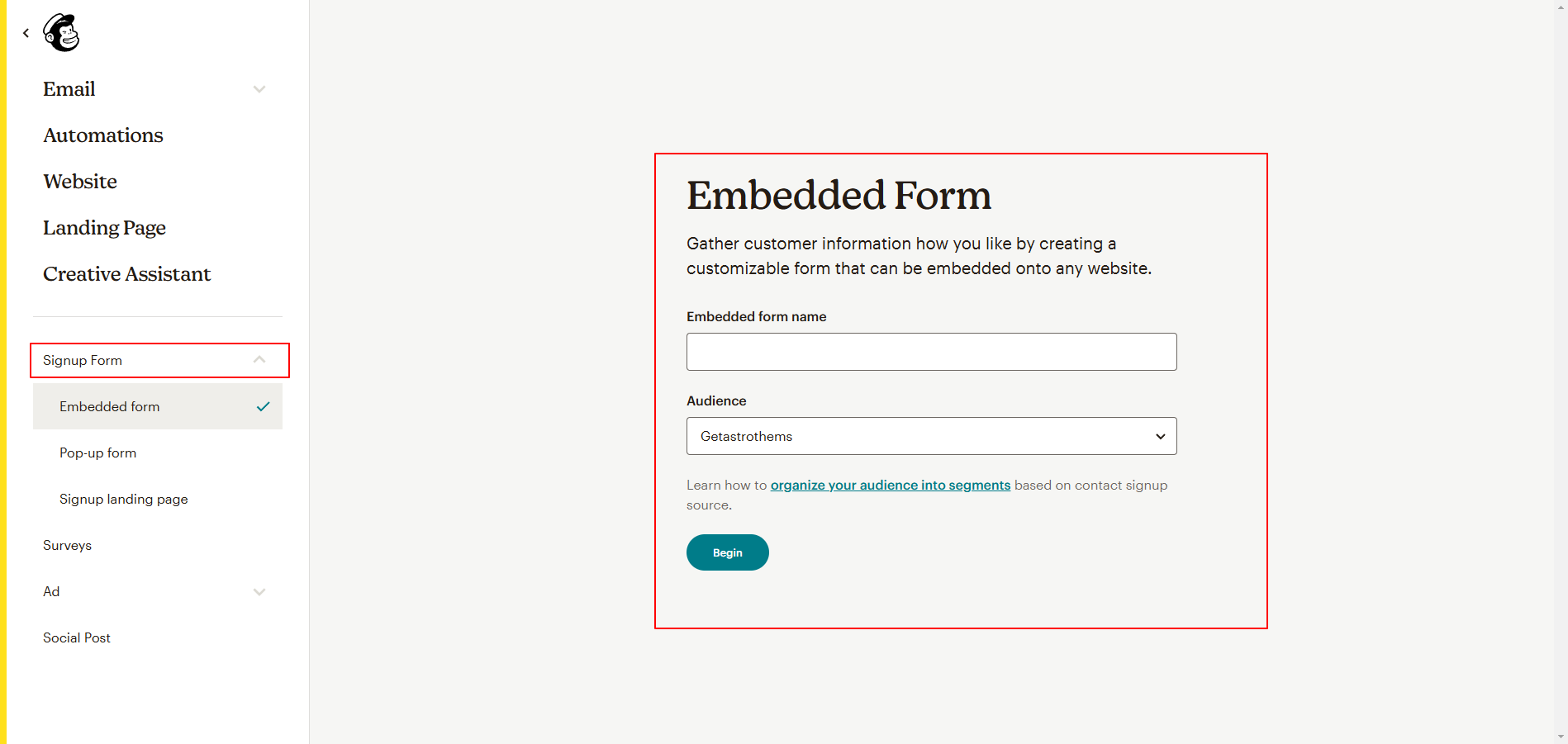
After you click
Begin, you will see a page where you can add more fields. Now, from the top right, click theContinuebutton.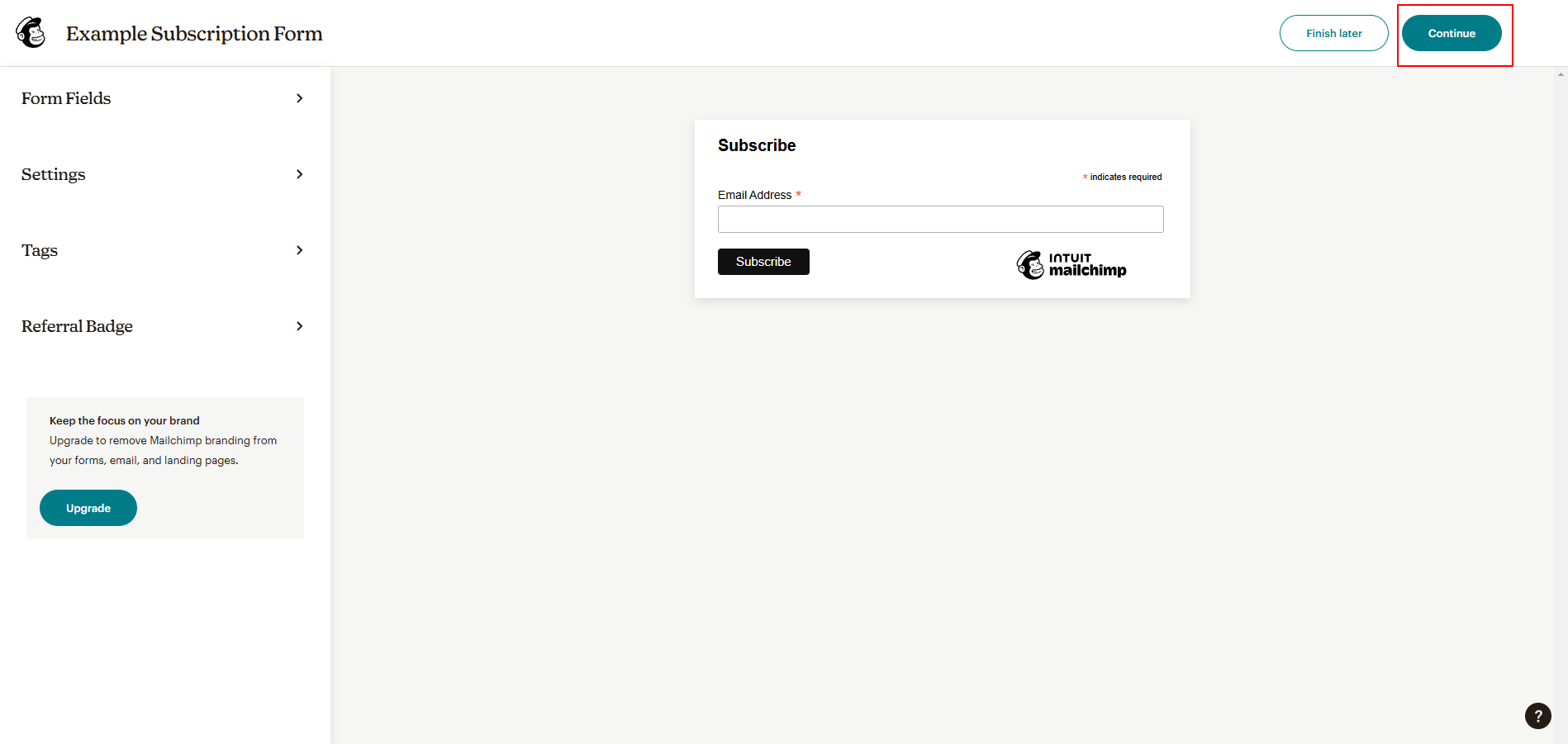
You will then see the following page. From the embedded form code, copy the
form actionvalue and paste it into theconfig.tomlfile under theformActionoption.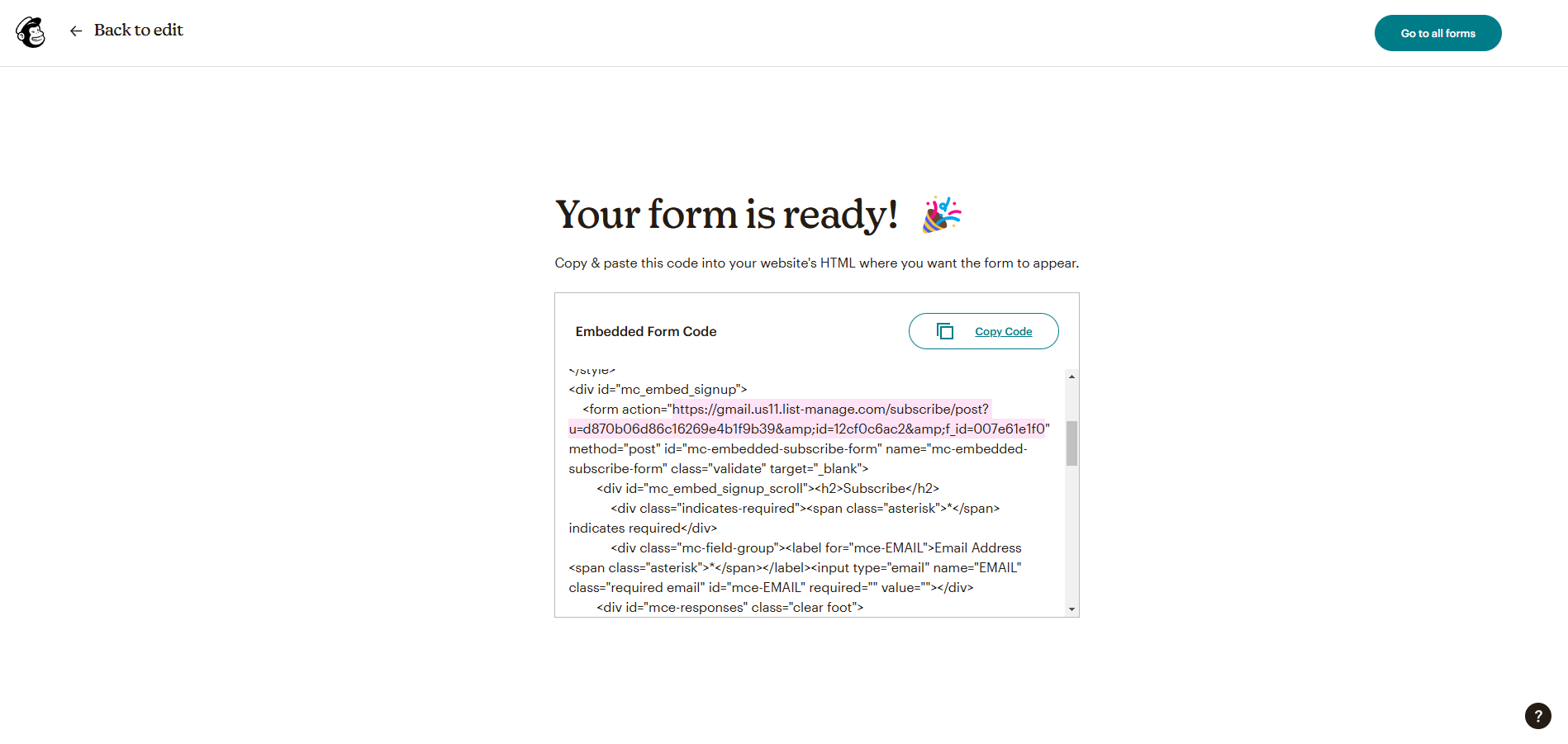
Ready to try? Fill out and submit the subscription form to test it.